EcwidPro (v2.x) Custom Settings

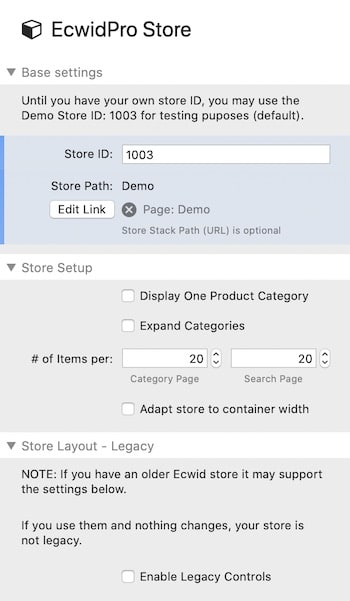
BASE
BASE It all starts here!
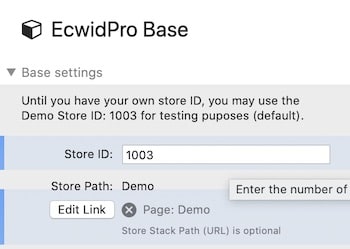
Enter your store ID, point to the page where your Store Stack resides and Voilá!
NOTE: add only one Ecwid Base Stack per page where other Ecwid Stacks are present.
IMPORTANT NOTE: all other EcwidPro Stacks inherit the settings from the Base Stack. The inherited settings are indicated by a blue vertical band and with the light blue coloring.
You only have to enter the Store ID once per page.

CUSTOMIZER
CUSTOMIZER - The all new customizer
The new Customizer Stack, has been completely re-written/re-organized in order to pack even more options, yet being easier to use.**
The main settings are re-arranged into logical sections more closely following the Ecwid workflow. Many more styling options were added. But in order to not add more complexity to settings we moved some of the functionality to child stacks, making the customizer modular where possible. For example, the Fonts Stack are now child stack the Ecwid Customizer v2. Here is a list of the child stacks of the Customizer v2 Stack:- Font Stacks
- Button Styling Stacks
- HTML Elements Styling Stacks
- Ecwid Classes Styling Stacks
- Hide Ecwid Search Stacks
- Promo Link Style (in-cart) Stack
- Continue Shopping Link (in-cart) Stack
- Single Product (Buy Now) Global Styling Stack
- Random Product Widget Style Stack
- Pinterest Save Widget Style Stack
**As result, the new Customizer is not compatible with the previous Customizer v1.x. But not to worry, we include an updated legacy version 1.x of the Customizer Stack that is compatible with the EcwidPro (v2) stacks. This allows your projects to work as they are, until you are ready to replace the Customizer legacy stack, with the new and more powerful Customizer (v2).
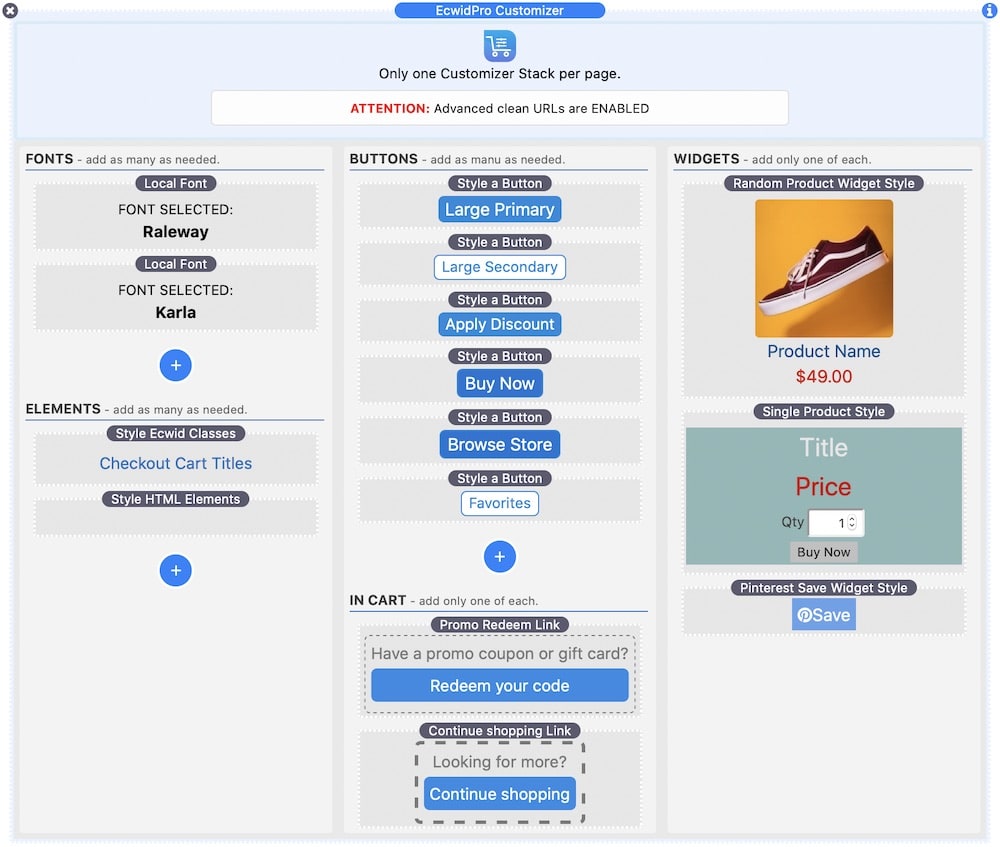
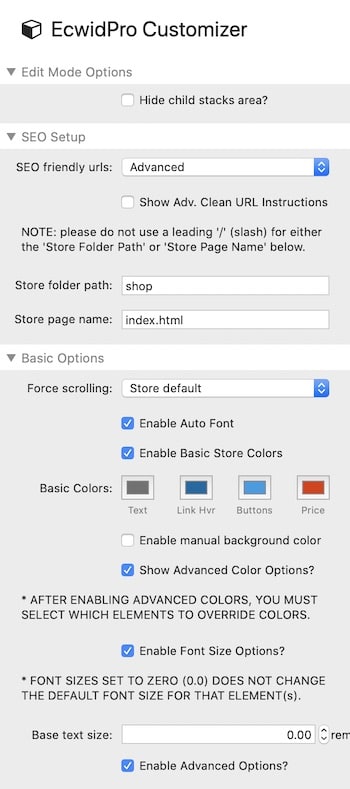
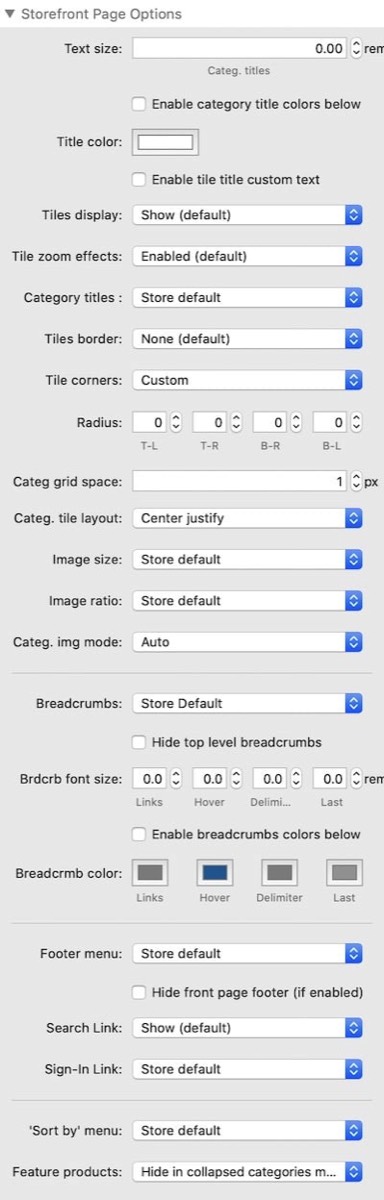
Customizer Settings
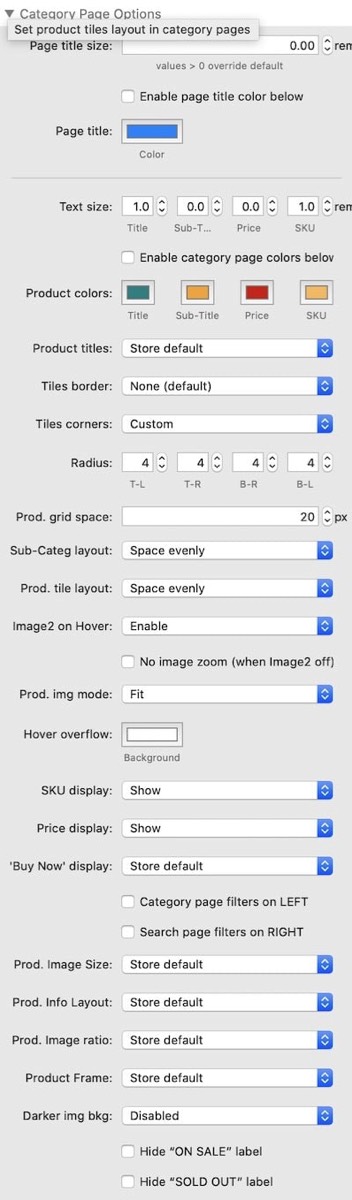
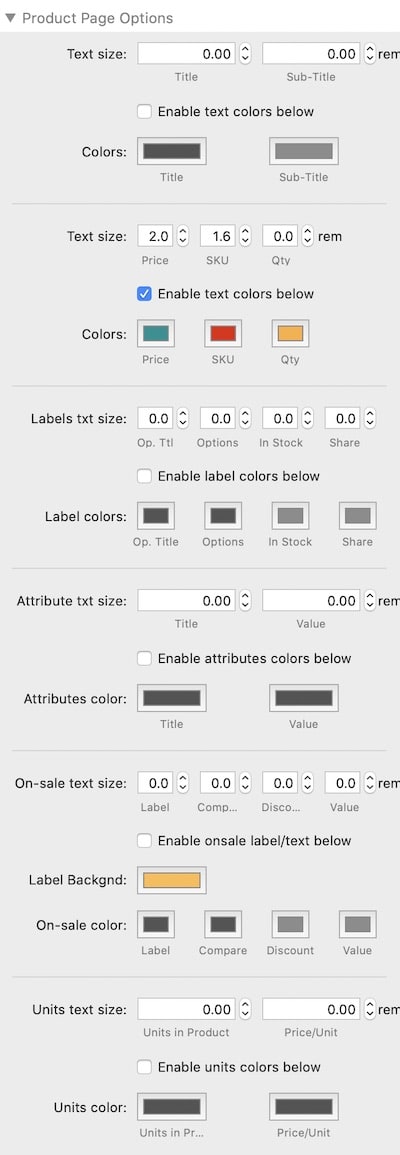
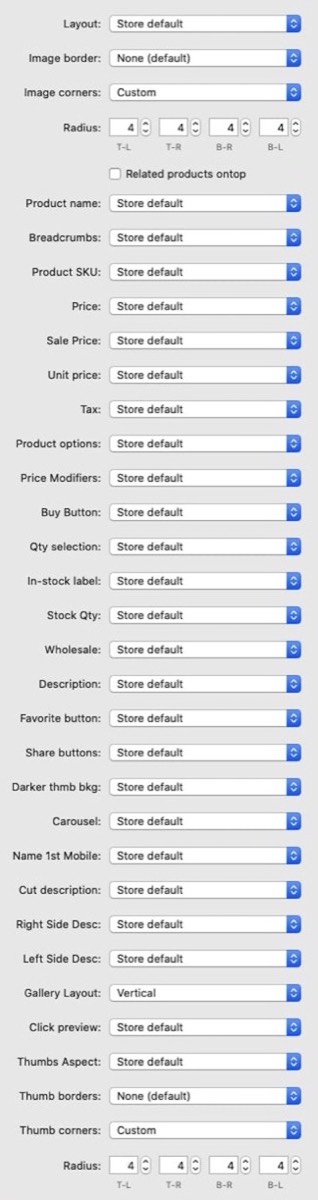
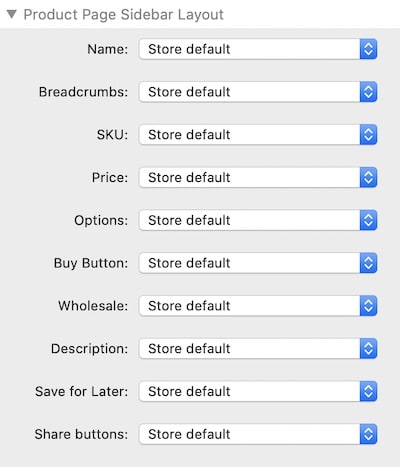

FONT
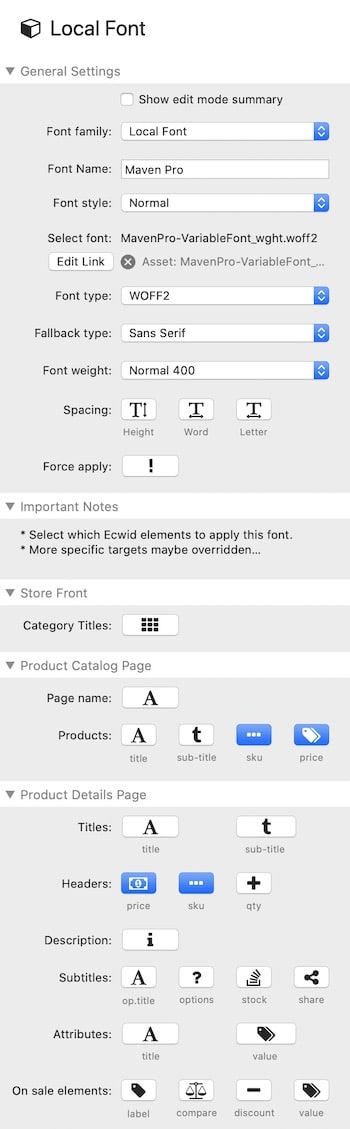
LOCAL FONT
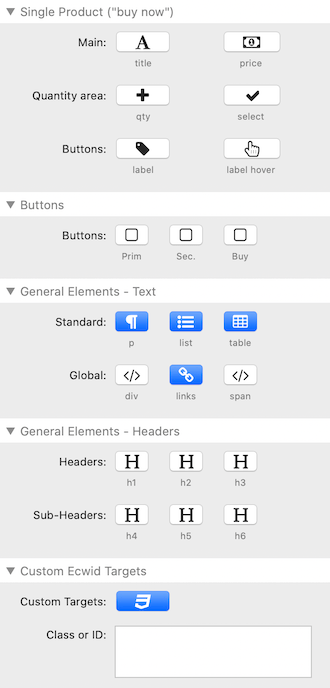
(now a child stack of the Customizer)- It has several new added features:
- Web safe fonts
- Local fonts (including variable fonts)
- Font styling
- Height spacing
- Word spacing
- Letter spacing
- Additional Ecwid elements
- New cleaner interface

STORE
STORE - With EcwidPro all stacks that need a store ID, inherit it from the Base stack.
Custom settings with a blue bar on the left (and the blueish tint) are shared by all EcwidPro stacks in the same page.
Use the Customizer (and it's child stacks) to control the look and feel of your Ecwid Store.
All Ecwid products will display within the space you allocate for the store stack. It will respect the constraints of the container, column or section in which you place it.

PRODUCT
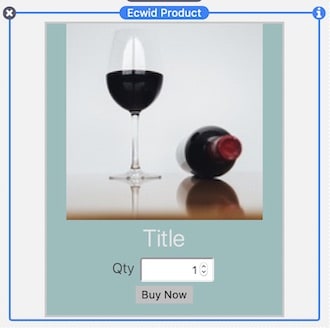
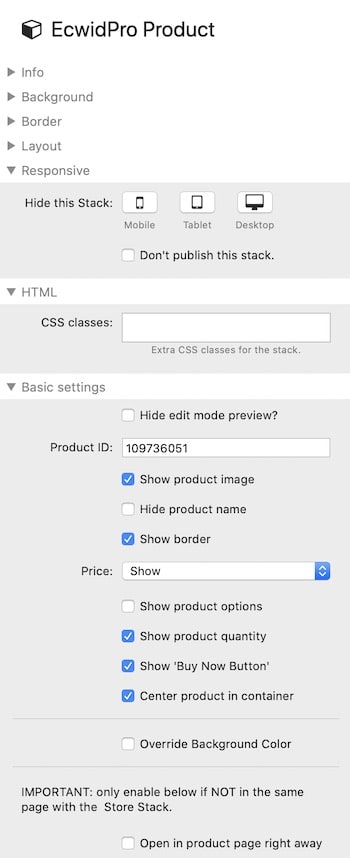
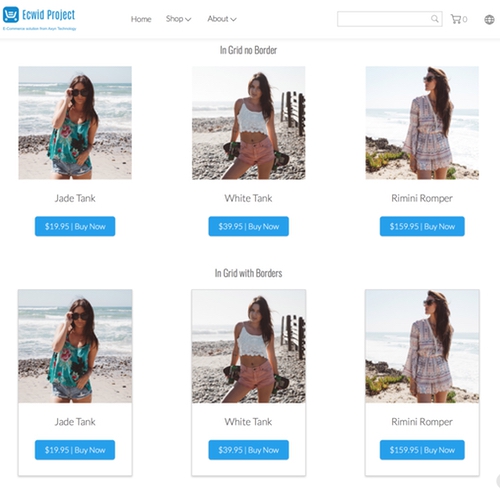
PRODUCT "Buy Now" - The Product Stack, displays a single product. A customizable version of the Ecwid "Buy Now" widget. Completely re-written in version 2, now supporting Edit Mode preview.
Use the Product Style Stack in the Customizer the control the look and feel of you Ecwid "Buy Now" single Product.
PRODUCT+
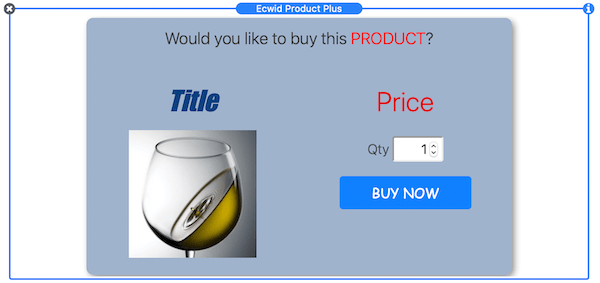
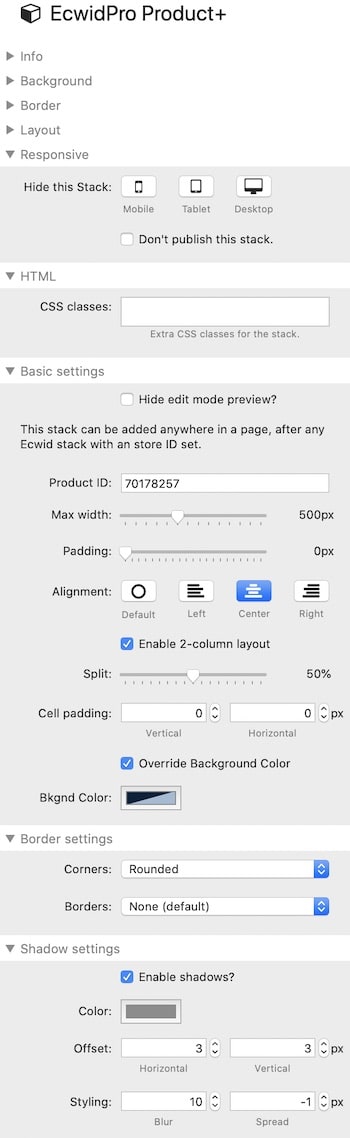
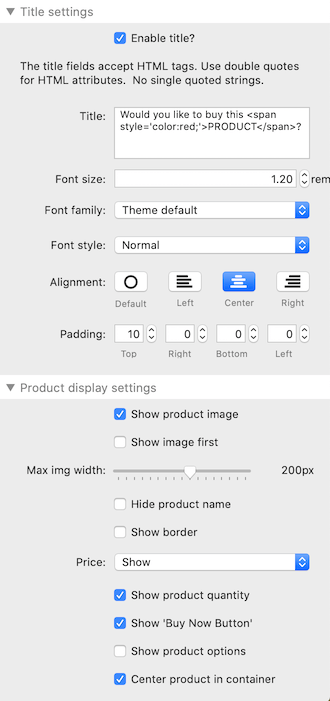
PRODUCT+"Buy Now" - The Product Plus Stack, builds on the standard Product stack. It also displays a single product, but it has many additional options. A 2-column display layout, shadows, corner control, a customizable title, font controls, title positions and much much more.
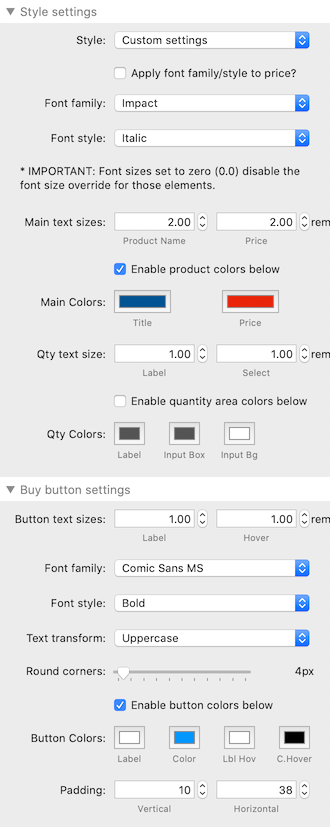
You can use the Product Style Child Stack in the Customizer the control the look and feel of you Product Plus or you can use individual styling options for each stack. The example below shows a Product Plus Stack displaying a custom style, overriding the customizer style settings.

PRODUCT MODAL
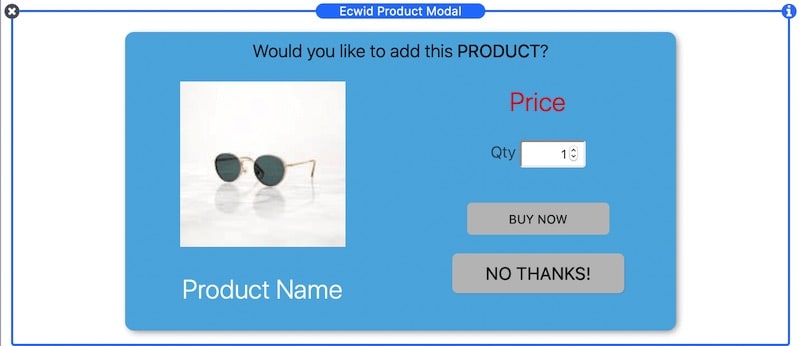
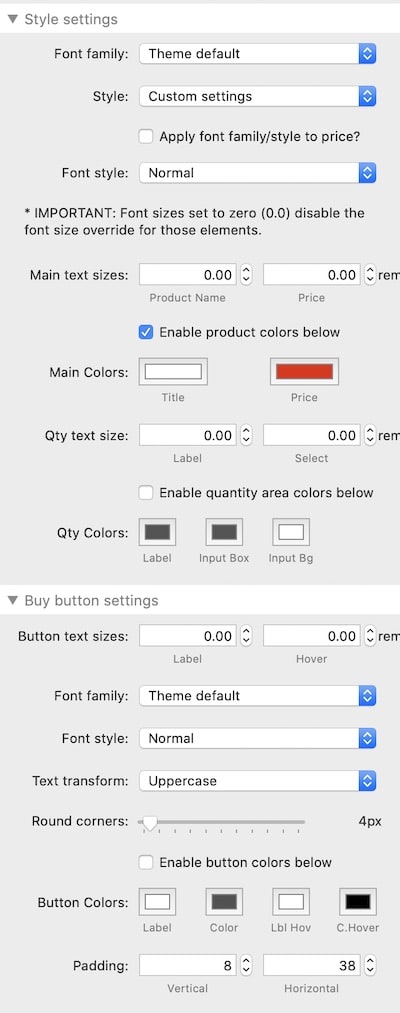
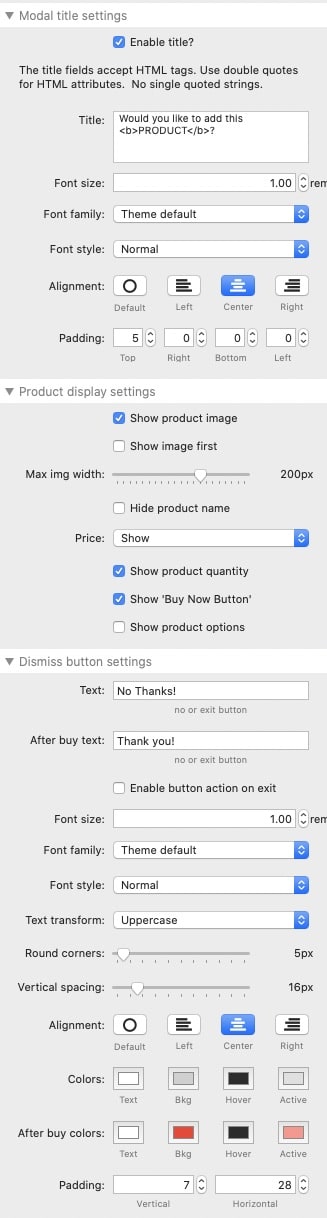
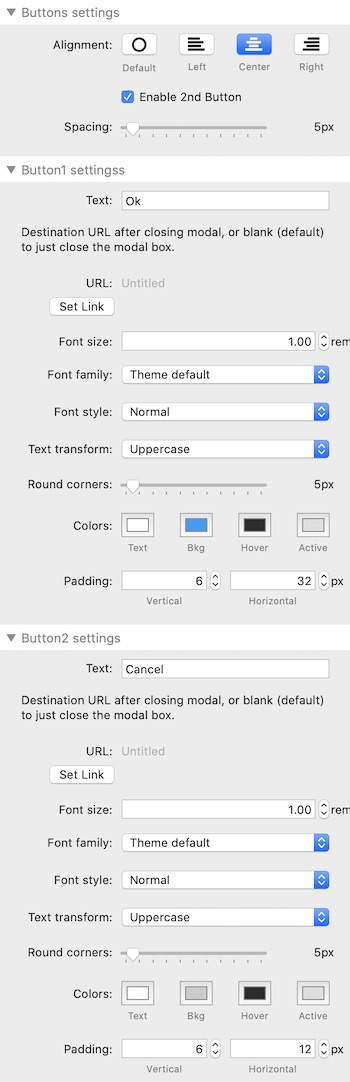
PRODUCT MODAL "Buy Now" - The Product Modal Stack, can display a product as the with the features of the Product Plus stack, however it can be configured to popup under particular conditions. Additionally, if the user selects to "BUY" the item, it can automatically add it to the shopping cart.
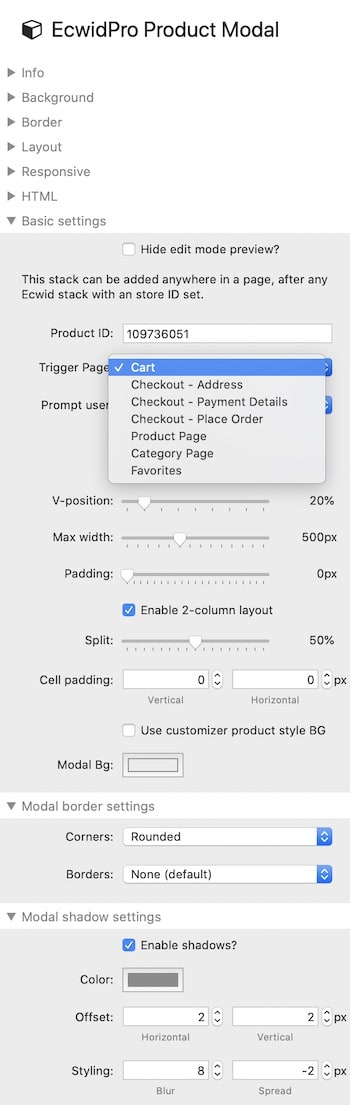
The popup can be trigged only to always appear, or to appear just once or until the item is in the cart.
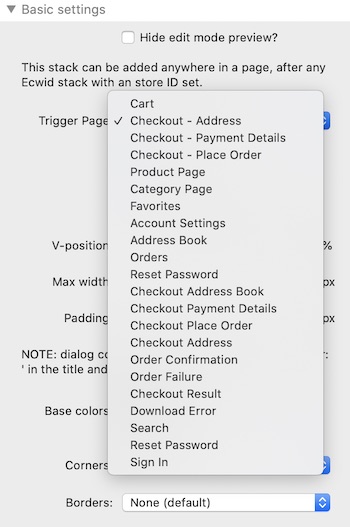
Triggers pages include: Cart, Checkout (address, payment details or place order), product page, category page or favorites.

MODAL
ECWID MODAL
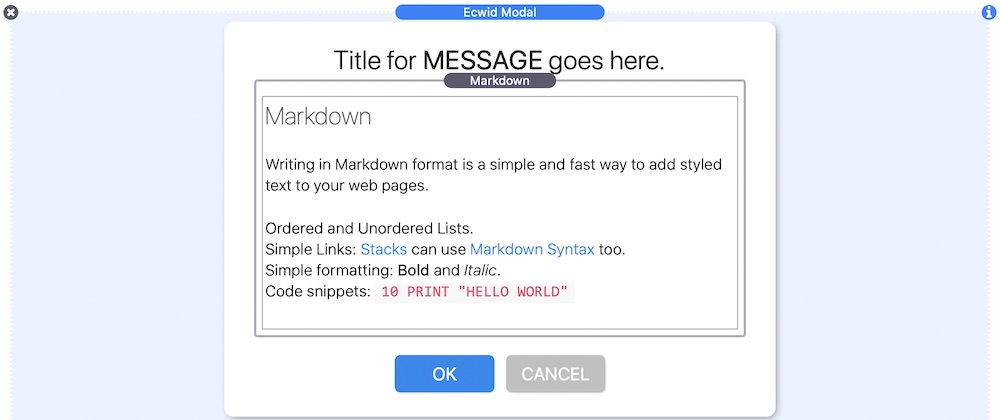
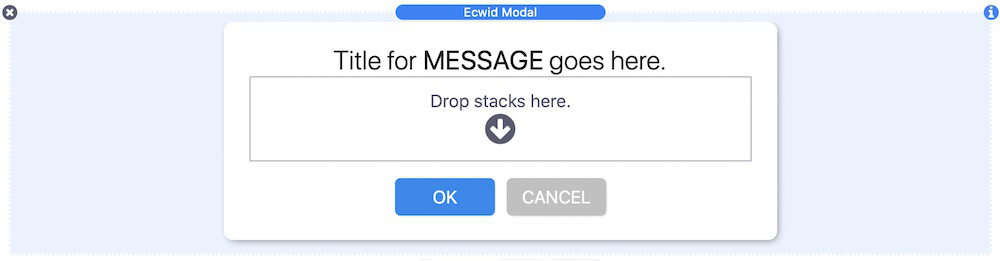
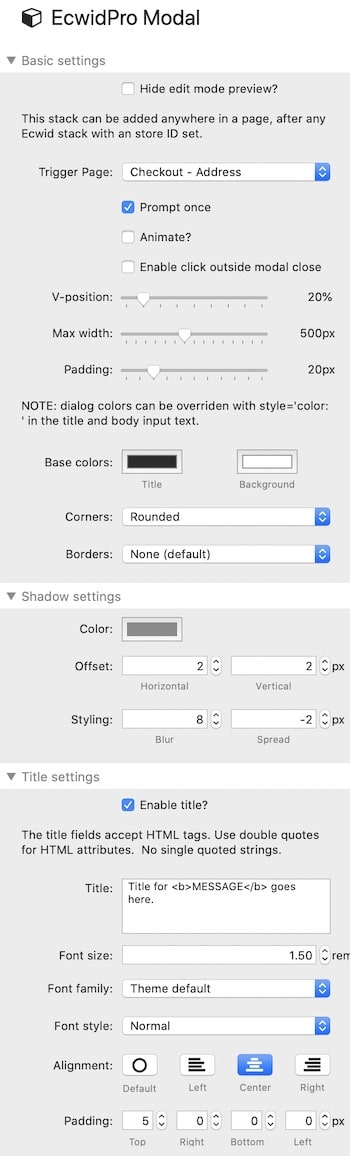
- Use the Modal Stack to display messages, images, samples, discounts or anything that you want your customers to see. You can drop almost any other stack into the Modal Stack drop-zone, and the Modal Stack will popup when the event of your choice is trigged.
Triggers pages include: Cart, Checkout (address, payment details or place order), product page, category page or favorites.
In the example below, a markdown stack was dropped into the Ecwid Modal Stack drop zone.
MODAL TRIGGERS

CART
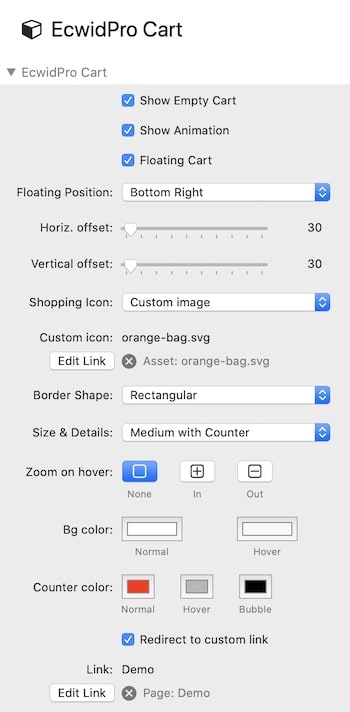
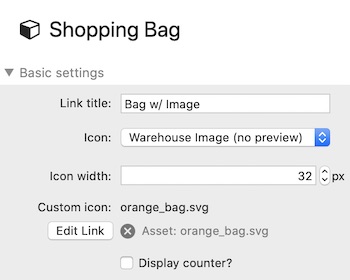
SHOPPING CART - Use the Shopping Cart stack to either display a floating shopping cart onto your page, or in a specific location within the content. You can choose the icon type, size and it's color styles. You can also display a custom image, such as a JPG, PNG or SVG file.

SEARCH
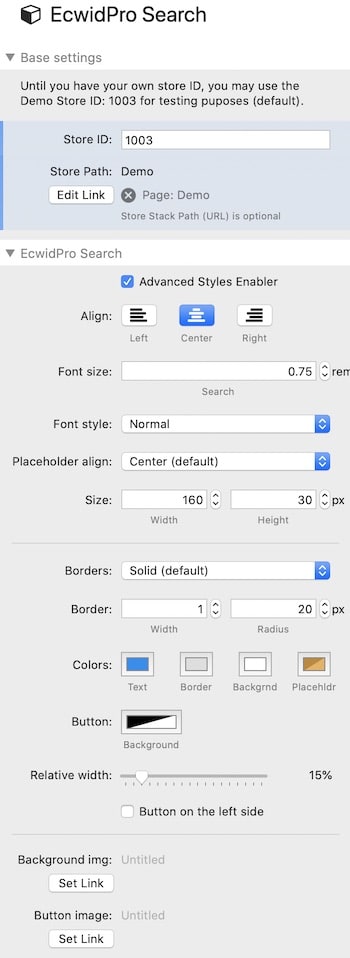
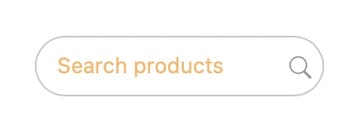
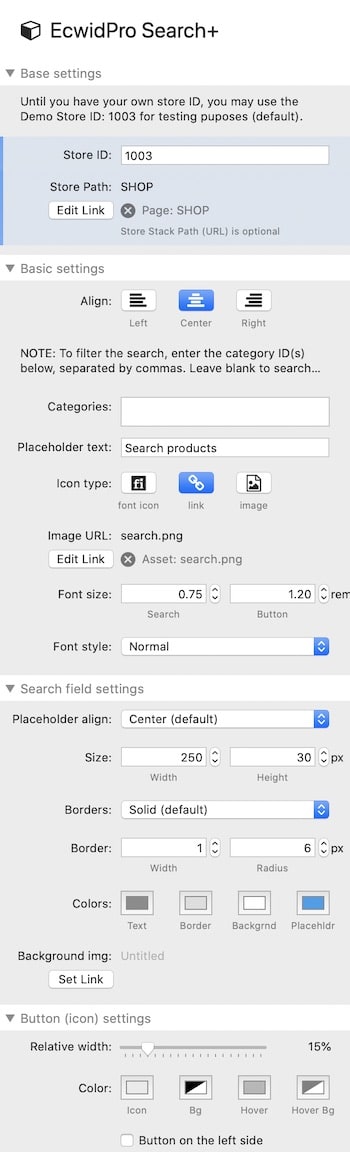
SEARCH - Use the search stack to look for products within your Ecwid Store. Due to the Ecwid script limitations, you can have only one per page. The search stack, allows you to customize the look of the search field, as to match the look of your website.

SEARCH+
SEARCH+
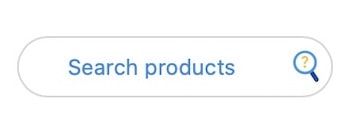
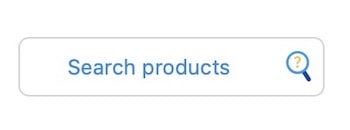
- Use the Search+ Stack to look for products within your Ecwid Store. But unlike the regular Search Stack, you can have multiple instances of the Search Plus Stack per page. The Search stack, allows you to customize the look of the search field, as to match the look of your website. Additionally you can use your own placeholder text without relying on the Ecwid dashoard, and you can use your own custom icon within the search input field.
The Search Plus Stack does not rely on any JS script and you can restrict the search to one or more categories in your Ecwid Shop

CATEGORIES MENU
CATEGORIES MENU
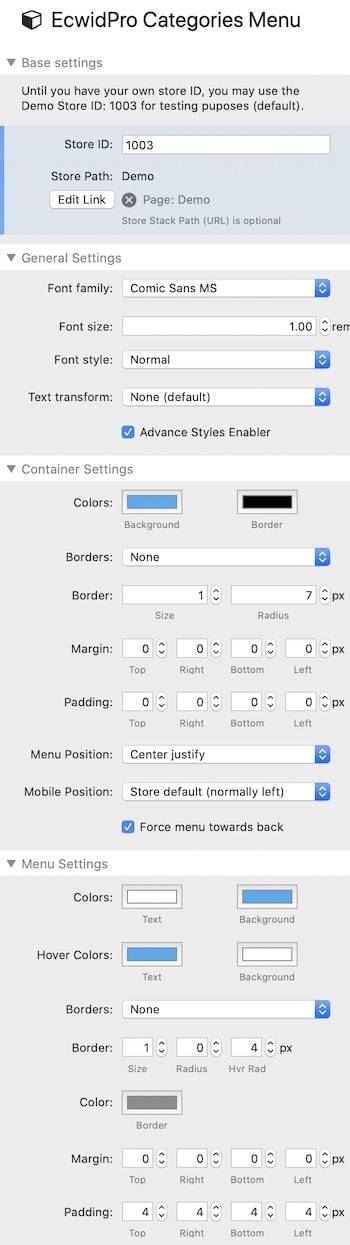
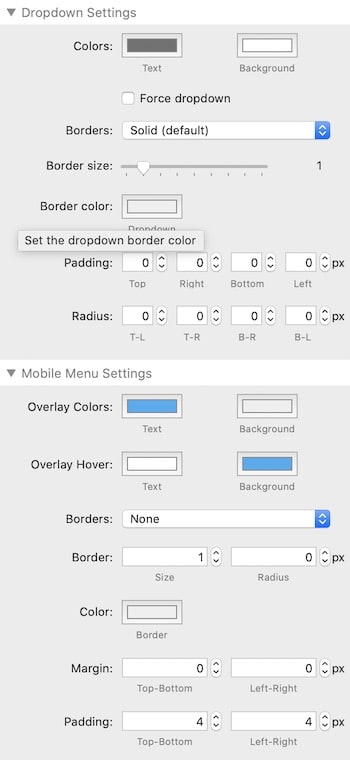
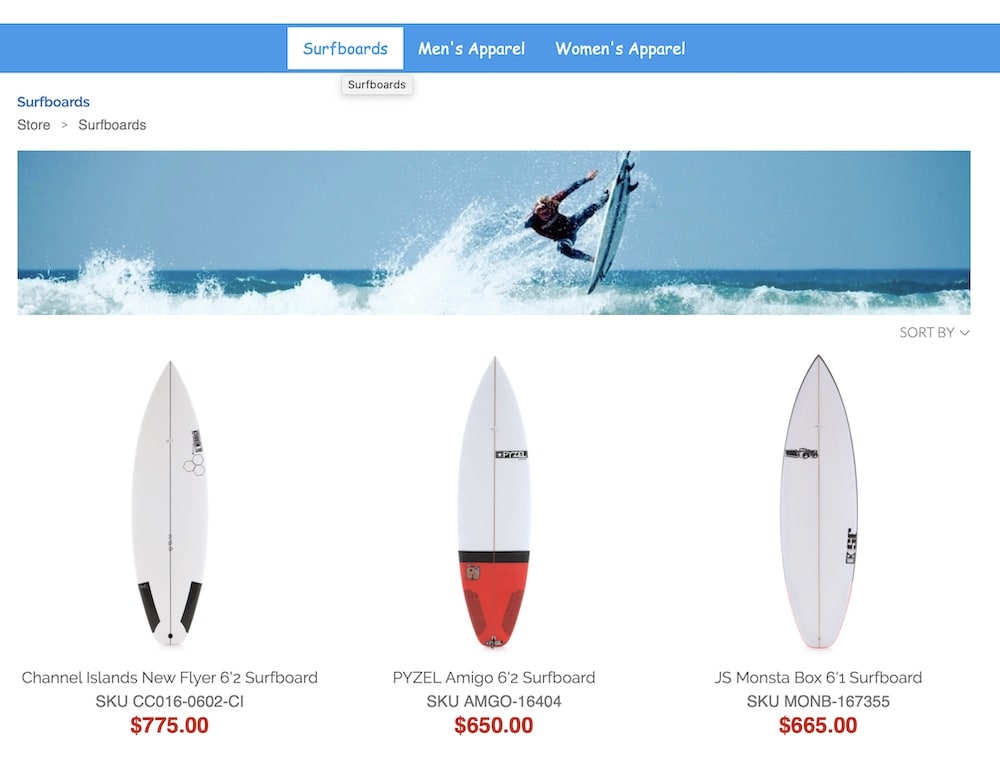
- Display the Ecwid Categories Menu anywhere on your website. Use only one Category Menu Stack per page. You can control the look and feel of the category menu such as: fonts, color, background, dropdown, container, position, shadow, corners, borders, mobile menu and much more.

ICON MENU
ICON MENU
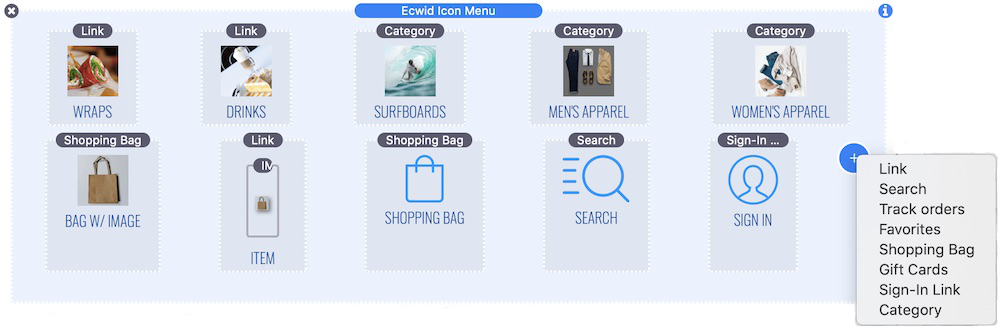
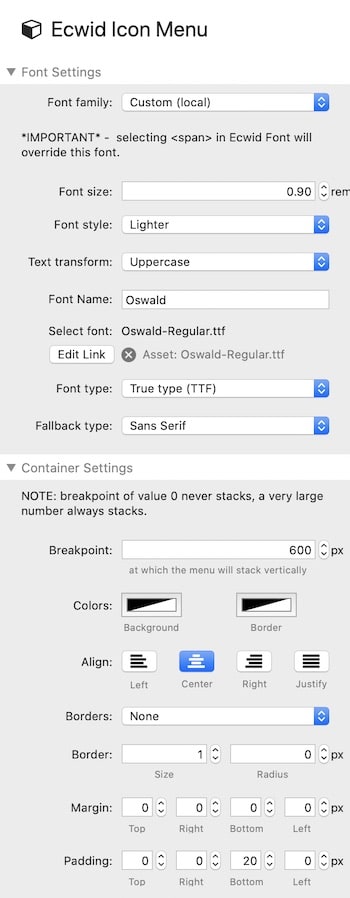
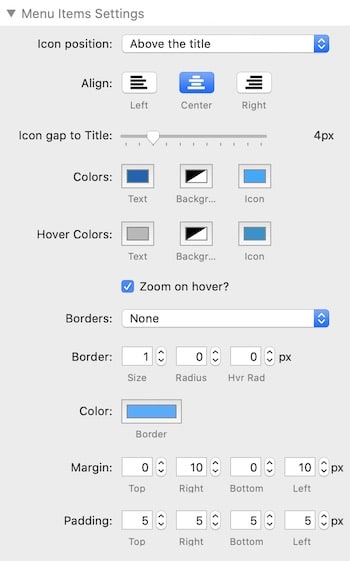
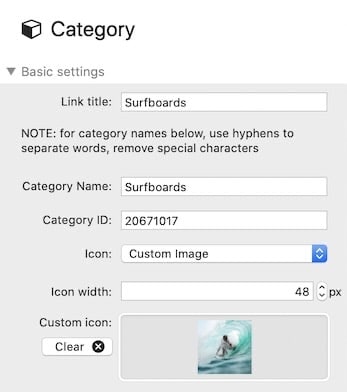
- Create a graphical Ecwid navigation menu using icons or images. It was initially designed to replace the footer menu, but now, it can also be use as a graphical categories menu.
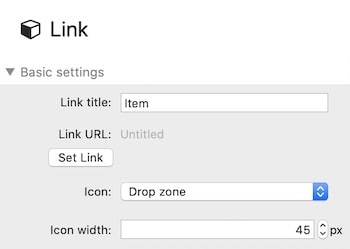
The Icon Menu Stack is modular, responsive and customizable. You can add not only standard Ecwid navigation items such as, categories, sign-in, shopping bag, search, but also any custom links.
The images format can be JPG, PNG, TIFF, GIF or SVG. Or you can use Fontawesome icons or set it to a drop zone, into which, you may also use other stacks to create stunning menus.

ORDER FIELDS
ECWID ORDER FIELDS
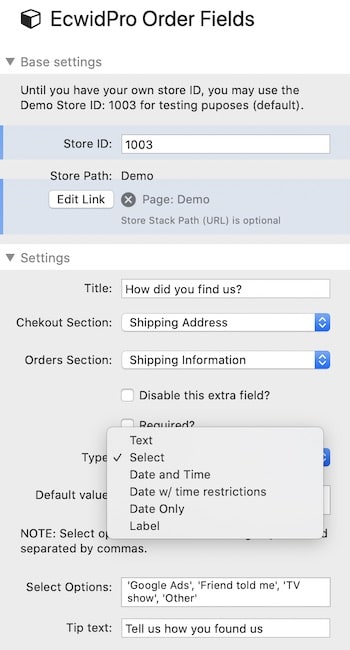
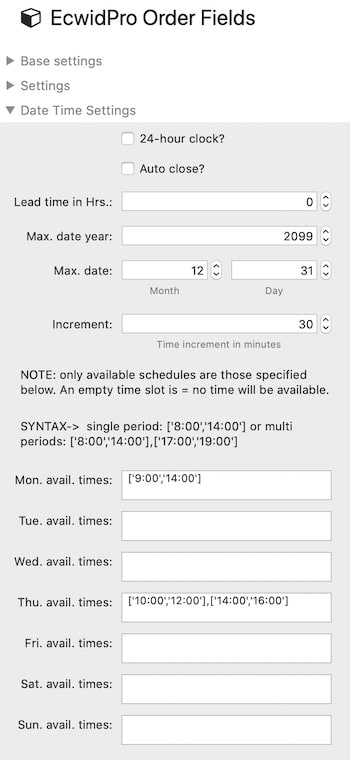
- Use the Order Fields Stack to add custom fields to the checkout process. With these custom fields additional information can be requested from the customer during the checkout process and the user responses will display in the order details.
This is helpful when a merchant needs to know some additional information like delivery date, delivery comments, company details and other. The responses will be shown in order details in Ecwid Control Panel.
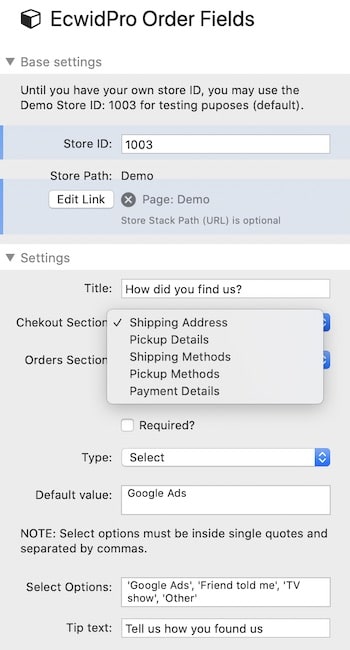
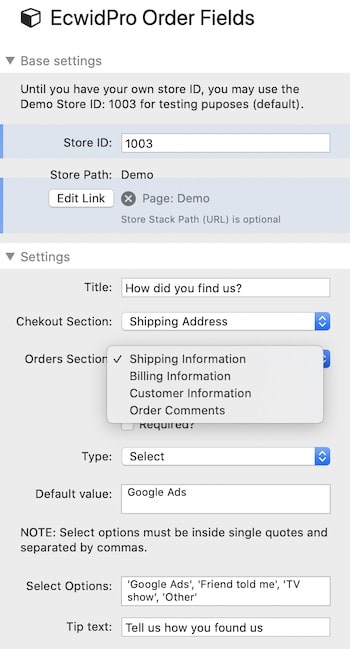
The Order Extra Fields can be added to the following sections of the checkout process:- Shipping Address
- Pickup Details
- Shipping Methods
- Pickup Methods
- Payment Details
- Shipping information
- Billing information
- Customer information
- Order information
ORDER FIELDS TYPES
ORDER FIELDS SECTIONS


© Copyright 2018-2019 - All rights reserved.